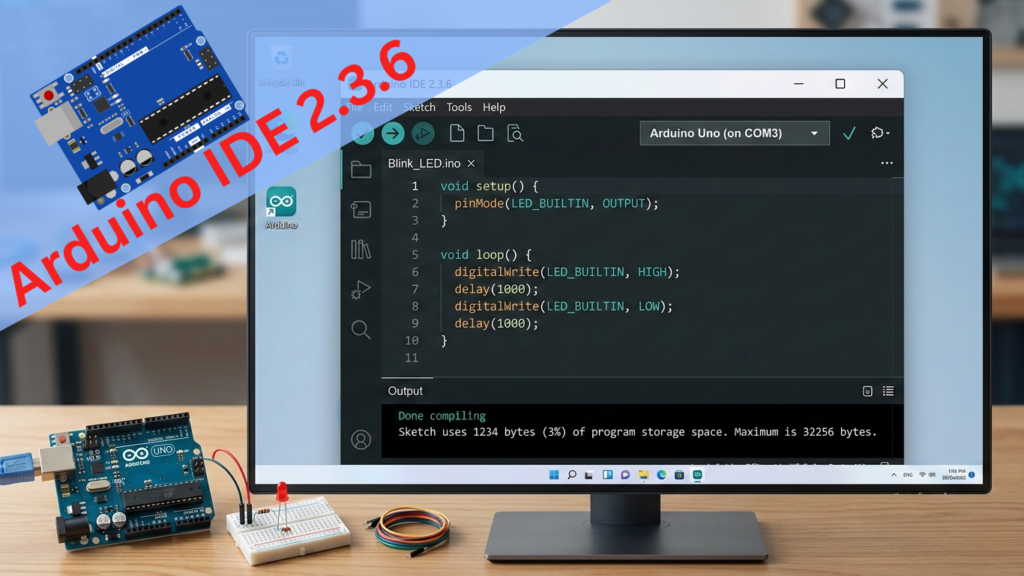
This guide presents the key features of Arduino IDE 2.3.6. It offers practical tips on advanced tools, troubleshooting, and sourcing equipment for both experienced engineers and beginners.
This guide will first examine the core features of version 2.3.6, then address advanced tasks such as post-build actions, and finally provide recommendations for sourcing equipment in New York City
What’s New in Arduino IDE 2.3.6?
If you’re still calling it an “ardouine” or searching for an “ordunio” online (don’t worry, we’ve all been there with the typos), the software is more forgiving than your spelling. Version 2.3.6 is a stability-focused release. While the shiny new “Live Debugger” was the star of the earlier 2.3 launches, 2.3.6 doubles down on fixing those annoying “bug in the code” bugs that used to crash the IDE when you had too many tabs open.
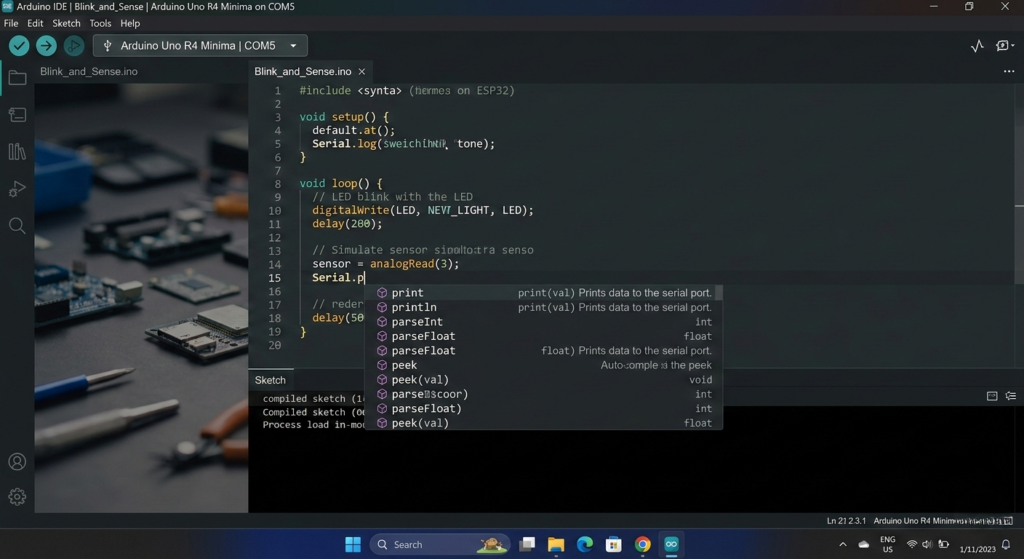
A significant enhancement in this version is the improved Auto-complete feature, which is now more responsive. The IDE provides real-time suggestions for methods in complex libraries, with considerably less lag compared to versions 2.0 or 2.1.
Can I Add Post-Build Actions to Arduino IDE?
As projects evolve from basic LED blinking to complex IoT builds, users may seek to implement post-build actions in the Arduino IDE. For instance, it may be desirable to copy the compiled .hex file to a designated folder or execute a Python script following each successful compilation.
This functionality is possible, but it requires manual configuration. Unlike comprehensive IDEs such as Visual Studio, Arduino IDE does not provide a straightforward “Post-Build” option in its settings. Instead, users must utilize Platform Hooks.
How to Set Up a Post-Build Hook
Arduino IDE employs the arduino-cli tool in the background. To execute an action after building, it is necessary to edit the platform.txt file corresponding to the specific board, such as the Uno or ESP32.
1. Locate the “Heart” of Your Board (platform.txt)
Each board, like the Uno, Nano, or ESP32, has a platform.txt configuration file. This file tells the IDE how to compile code for that specific hardware.
-
- On Windows: Go to %LocalAppData%\Arduino15\packages.
-
- On Mac: Go to ~/Library/Arduino15/packages.
-
- Navigate through the folders to locate the specific version of your board (for example, esp32 > hardware > esp32 > 3.0.2). Inside, you will find platform.txt.
2. Add the “Post-Build” Recipe
Open platform.txt with a text editor such as Notepad++ or VS Code. Add a “recipe” line using the following syntax:
$$recipe.hooks.postbuild.NUMBER.pattern = COMMAND$$
For example, to play a sound or run a Python script after each compilation, add the following line:
recipe.hooks.postbuild.1.pattern=python “C:\scripts\notify_me.py”
3. Why is this useful?
-
- File Organization: You can automatically copy the compiled .hex or .bin file to a “Releases” folder.
-
- Automation: Trigger a script to upload code to a cloud server or remote device.
-
- Notifications: Set up your computer to announce “Build Complete” so you do not need to monitor the progress bar.
4. The “Safety First” Rule
Since platform.txt is a global file, any project using that board will execute the specified command.
-
- Warning: If the command fails, such as when a required script is missing, the Arduino IDE will display a “Compilation Failed” error, even if your code is correct.
Shopping for Gear: Finding a New York Arduino Shop
For those in New York City who require immediate access to components for Arduino projects, several reputable electronics stores remain available, despite the closure of many traditional local shops.
Where to go in NYC:
-
- Tinkersphere (Lower East Side): This well-known New York Arduino shop offers a wide range of products, from basic clones to advanced sensors and specialized robotic components.
-
- Micro Center (Brooklyn/Queens): Although a large retailer, its DIY section is extensive and well-stocked with official boards, Raspberry Pis, and soldering supplies.
-
- Adafruit (Online, NYC-based): Based in Manhattan, Adafruit provides fast shipping within the Tri-State area.
Common Mistakes: Ordunio vs. Arduino
Let’s handle the elephant in the room. We see it in search logs all the time: people searching for an ordunio or even an ardouine.
Although search engines can often interpret typographical errors, using the correct spelling is essential when searching for libraries on GitHub or consulting documentation, as it enhances the accuracy of search results.
The name “Arduino” originates from a bar in Ivrea, Italy, where the founders met. This serves as a reminder to occasionally take a break during challenging debugging sessions.
Why Version 2.3.6 is a “Must-Upgrade”
In version 2.3.5, a major bug actually broke the auto-update system. Users found that the IDE no longer notified them of new versions, and the “Look for Updates” button did nothing.
-
- Without 2.3.6, updates must be performed manually. Installing version 2.3.6 restores automatic updates for future features.
2. No More “Window Stealing.”
Previously, the Arduino window would repeatedly move to the foreground during code compilation whenever a new line appeared in the Output console.
-
- The Upgrade: Version 2.3.6 resolves this “focus stealing” issue, allowing you to multitask while your sketches compile in the background.
3. Support for Massive Sketches (Up to 16MB)
As boards like the ESP32-S3 and the new Arduino Uno Q become standard, code sizes are exploding.
-
- The Upgrade: Version 2.3.6 increases the maximum sketch file size to 16MB and addresses memory leaks during large-folder scans. This ensures better performance for complex projects with high-resolution assets.
4. Faster “Cold Starts.”
Under the hood, 2.3.6 updated its core engine (Electron 30) and the Arduino CLI (1.4.1).
-
- The Result: The “Piping Arduino” loading screen is now more responsive. Additionally, a common macOS bug that caused extra blank windows to open has been resolved.
5. Security & Dependencies
Version 2.3.6 includes critical security patches for common libraries like axios and follow-redirects (addressing various CVE vulnerabilities).
-
- For Professionals: If you use your Arduino setup for work or in an educational environment, these security patches are essential for compliance with current network safety standards.
Summary Table: 2.3.5 vs. 2.3.6
| Issue | Arduino IDE 2.3.5 | Arduino IDE 2.3.6 |
| Auto-Update | Broken (No notifications) | Fixed & Restored |
| Focus | Steals focus from other apps | Stays in background |
| Max Sketch Size | Limited/Laggy | 16MB (Optimized) |
| macOS Stability | Opens duplicate blank windows | Clean single-window launch |
Pro Tip: Since version 2.3.5 disabled the update tool, you will not receive a “New Version Available” notification. Visit the Official Arduino Software page to manually download the 2.3.6 installer.
Internal Linking & Resources
To get the most out of your setup, you might want to explore:
-
- Our Guide to ESP32 Integration: Perfect if you’re moving beyond the basic Uno.
-
- Mastering the Serial Plotter: A visual way to see your sensor data in real-time in the 2.3.6 interface.
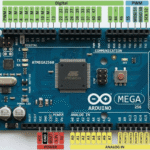
For comprehensive technical details and the latest firmware updates, the Arduino Official Documentation site is recommended. It serves as the authoritative resource for verifying pinout diagrams and power requirements.
FAQ: Everything You Need to Know
1. Is Arduino IDE 2.3.6 free?
Yes! Like all previous versions, it is open-source and free to download. You can make a donation during the download, but it isn’t required.
2. Will my old code work on version 2.3.6?
Absolutely. The 2.3.6 version is fully backward-compatible, including sketches created in older 1.0 or 1.8 environments.
3. I’m getting a “Board not found” error. What do I do?
Check your drivers! Especially with ordunio clones, you often need the CH340 driver. In 2.3.6, make sure you’ve selected both the correct Board and the correct Port in the top dropdown menu.
4. How do I change the theme to Dark Mode?
Go to File > Preferences and look for the “Theme” dropdown. Version 2.3.6 has a much cleaner “Dark High Contrast” mode than previous versions.
Final Thoughts
Arduino IDE 2.3.6 gives you professional, reliable tools and access to great resources. Stay focused on key features, NYC shops, and useful build options to get the best project outcomes.
The maker community in the United States continues to expand, from Brooklyn workshops to Silicon Valley garages. Users are encouraged to update their software, prepare their equipment, and persist in their innovation, rather than allowing technical errors to impede progress.
Ready to start your next project? Would you wish me to help you write a basic template for an ESP32 web server or a custom sensor script?



Leave a Reply