
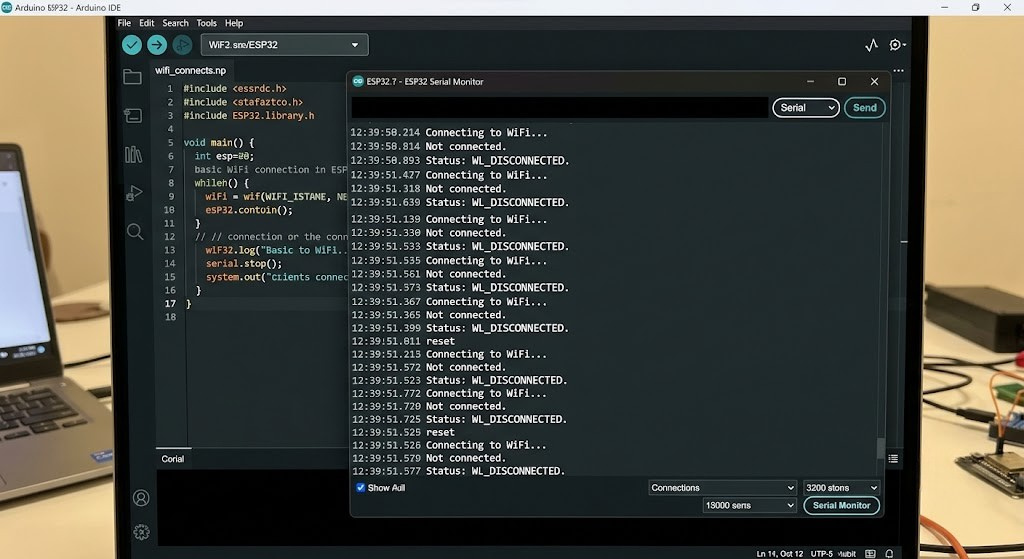
An ESP32 Arduino WiFi password legal characters can still leave your board stuck blinking “connecting…” forever, and I learned that the hard way on a weather station build that sat on my desk for two days before I figured out the problem was one apostrophe.
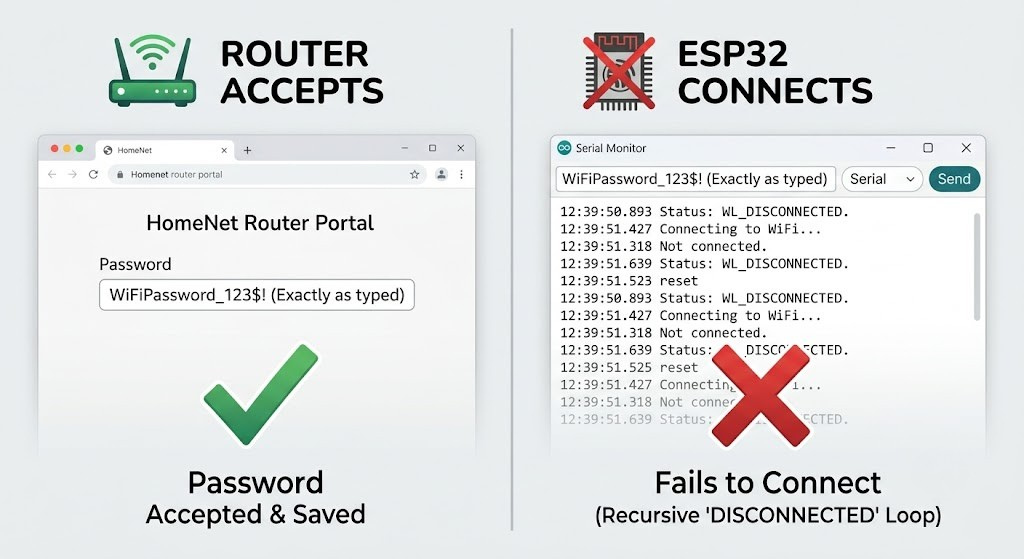
The router accepted that password without a complaint. My phone connected to it in two seconds. The ESP32 just sat there, cycling through WL_DISCONNECTED like it had never heard of my network. That gap between “the router says this password is fine” and “the ESP32 will actually connect with it” is the whole story here, and almost nothing online explains it in one place.
<a id=”legal”></a>
For more details, see the official documentation at Arduino resources.
What Counts as a Legal WiFi Password Character
A legal WiFi password is any printable ASCII character, and the passphrase itself must be 8 to 63 characters long. That range comes straight from the wireless standard behind WPA2 and WPA3, not from any single router brand or app. Letters, numbers, spaces, and the usual keyboard symbols are all fair game on paper.
That is the router’s rulebook. Your Arduino sketch runs by a different one, and that’s where things fall apart.
<a id=”rejects”></a>
Why Your ESP32 Sketch Rejects a Legal Password Anyway
There are two separate layers here, and mixing them up is what sends most people down the wrong troubleshooting path.
Layer one is the C compiler. Your password lives inside a quoted string in your sketch. A stray double quote or backslash inside that string will either break compilation or quietly change what gets sent, because those two characters have special meaning in C.
Layer two is the ESP32’s own WiFi stack. Even after your code compiles fine, a handful of characters have caused real, documented connection failures at the firmware level, independent of any typo in your code.
Across GitHub issue threads for the Arduino ESP32 core, ESP8266 core, and popular libraries like WiFiManager, the same handful of characters keep showing up as troublemakers:
- Double quote (
") and backslash (\): break the string literal unless escaped - Percent (
%), ampersand (&), single quote ('), plus (+), underscore (_): reported in multiple issue threads as causing failed or dropped connections - A leading
!,#, or;: some parsers treat these as comment or command markers when they open the password
Key takeaway: A character being legal under the WPA2/WPA3 standard does not mean it is safe to hardcode into an ESP32 sketch. Test the connection, not just the compile.
<a id=”escape”></a>
How to Escape Special Characters in Your Arduino Sketch
If your real password has a double quote or backslash in it, you cannot just paste it in. You need to escape those two characters with a backslash in front of them.
cpp
// This line will NOT compile.
// The unescaped quote ends the string early.
const char* password = "Sunny"Days99";

// This is the correct, escaped version.
// \" and \\ are how C represents a literal quote and backslash.
const char* password = "Sunny\"Days99";
I’d still lean toward keeping credentials out of the main sketch entirely. A separate header file is cleaner to manage and easier to swap between projects.
cpp
// secrets.h
#define WIFI_SSID "YourNetworkName"
#define WIFI_PASSWORD "Sunny\"Days99"
cpp
// main .ino file
#include "secrets.h"
#include <WiFi.h>

void setup() {
  Serial.begin(115200);
  WiFi.begin(WIFI_SSID, WIFI_PASSWORD);

  Serial.print("Connecting");
  while (WiFi.status() != WL_CONNECTED) {
    delay(500);
    Serial.print(".");
  }

  Serial.println();
  Serial.println("Connected. IP address:");
  Serial.println(WiFi.localIP());
}

void loop() {
}
This pattern also keeps your WiFi password out of version control if you add secrets.h to your .gitignore file, which matters more than people think once a sketch ends up on GitHub.
<a id=”change”></a>
The Fix Most People Skip: Change the Router Password
Escaping characters works, but it’s one more thing that can go wrong on your next project, and you’ll be doing it again every time you reuse this code on a new board.
The simpler fix, if the network is yours to change, is logging into the router and setting a password using only letters, numbers, and maybe a hyphen or underscore. You lose a little bit of character variety. You gain a password that works the same way in every sketch, every library, and every device you ever connect to that network again.
This isn’t always an option. Shared networks, office WiFi, or a landlord-controlled router mean you’re stuck escaping characters instead. Both routes work. Pick whichever one costs you less time.
[IMAGE SUGGESTION: Router admin panel screen showing the WiFi security password field | Alt text: “Router admin panel WiFi password settings screen”]
<a id=”checklist”></a>
Quick Troubleshooting Checklist
If your ESP32 still won’t connect after fixing the password string, work through these in order:
- Print the password back to Serial right before calling
WiFi.begin()to confirm the string matches what you think it is. - Count the characters. Anything under 8 or over 63 will fail the WPA2/WPA3 length rule outright.
- Check your router’s security mode. Older ESP32 boards without an updated Arduino core don’t support WPA3-only networks and need WPA2/WPA3 mixed mode enabled.
- Rule out the SSID, not just the password. Hyphens and spaces in network names have their own history of causing silent failures.
- Try the password with every special character stripped out, temporarily, on both the router and the sketch, to confirm the password itself is the actual culprit.
ESP32 Arduino Wi-Fi password legal characters
FAQs
Can a WiFi password have spaces on an ESP32? Yes. A space is a printable ASCII character and doesn’t need escaping inside a quoted string. Just avoid putting a space at the very start or end, since some router admin panels trim it without warning.
What’s the minimum and maximum WiFi password length for ESP32? The same as any WPA2 or WPA3 network: 8 characters minimum, 63 characters maximum. This comes from the wireless standard itself, not from Espressif or Arduino.
Does the ESP32 support WPA3 passwords? It depends on the board and core version. Older ESP32 modules need an updated Arduino core (2.0 or newer) to support WPA3, while newer chips like the S2, S3, and C3 have broader support. If your router is WPA3-only, switching it to WPA2/WPA3 mixed mode is the fastest fix.
Why does my password work on my phone but not my ESP32? Your phone’s WiFi settings screen and your Arduino sketch handle the same characters differently. The phone just stores the string. Your sketch runs that string through a C compiler first and then through the ESP32’s WiFi driver, so characters with special meaning in either layer can break the connection even though the password itself is valid.
Can I use emoji or non-English characters in a WiFi password? It’s best to avoid them. The WPA2/WPA3 standard is defined around printable ASCII, and the ESP32 handles the password as a plain byte string in your sketch, so non-ASCII characters are more likely to cause inconsistent behavior across devices.
Conclusion
A WiFi password can be perfectly legal under the WPA2 or WPA3 standard and still stall your ESP32 for reasons that have nothing to do with your wiring or your code logic. Knowing the difference between what the router allows and what your sketch and the WiFi stack can handle turns a two-day mystery into a five-minute fix.





Leave a Reply