
Author Note: I’ve spent years building Arduino projects as a hobbyist, and I’ve fried more components than I want to admit. Everything below comes from actual projects on my desk, not a spec sheet.
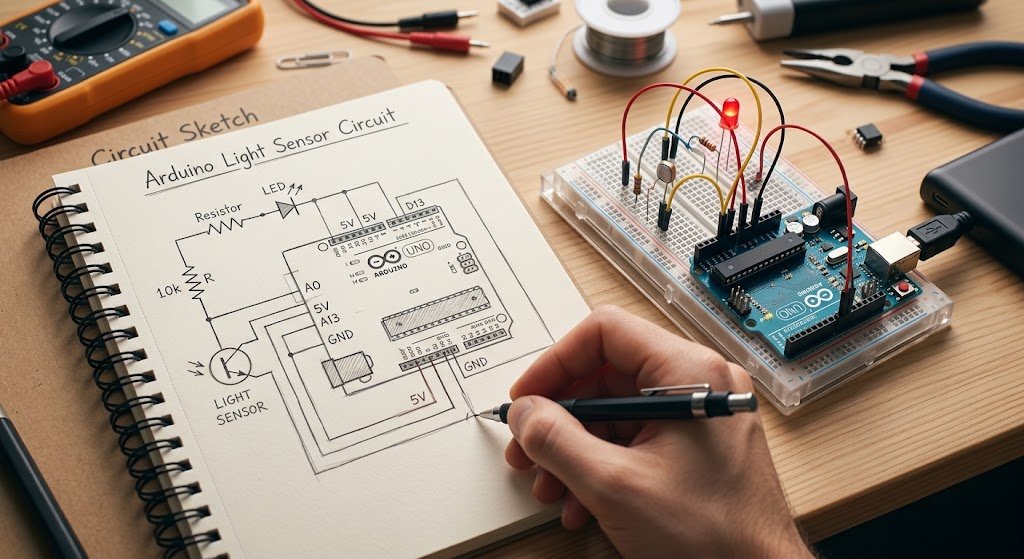
A circuit diagram maker saved my first real Arduino project from turning into a pile of burnt wires and bad decisions. I was building a simple light sensor setup, and I skipped the diagram step because I figured I could just wing it. Twenty minutes later I had a fried resistor and an Arduino Uno that wouldn’t boot. That mistake taught me something every beginner learns the hard way eventually: draw it first, build it second.
What Is a Circuit Diagram Maker
A circuit diagram maker is a tool that lets you map out an electronic circuit using standard symbols before you build it. You place parts like resistors, LEDs, and microcontrollers on a canvas, connect them with virtual wires, and check the layout before touching real hardware.
Key Takeaway: A circuit diagram maker isn’t just for engineers. It’s the fastest way to catch wiring mistakes before they cost you a real component.
Why I Stopped Skipping the Diagram Step
I used to think diagrams were for textbooks, not for someone just trying to blink an LED. That changed when I started teaching my nephew the basics of Arduino. Pointing at a messy breadboard and hoping he could follow along never worked. Pulling up a clean diagram and walking through it pin by pin did.
That’s part of why I started Arduino Kit Guide for Makers, where I document Arduino builds step by step. Every project on there begins with a diagram, because readers kept telling me wiring photos alone were too hard to follow. A good diagram turns a confusing tangle of jumper wires into something anyone can read in thirty seconds.
The Circuit Diagram Makers I’ve Actually Used
A lot of tools claim to be the best circuit diagram maker on the market. Here’s what I found after testing several of them on real Arduino builds, not just reading their homepage copy.
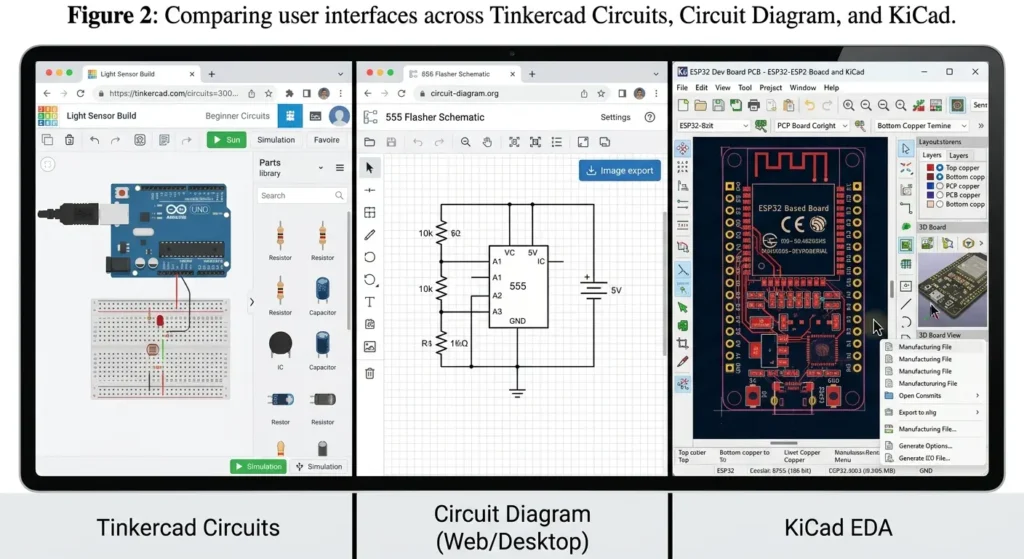
- Tinkercad Circuits: This is where most beginners should start, especially for Arduino work. It runs entirely in your browser and can simulate Arduino code right alongside the wiring, so you catch bugs before you ever plug anything into a real board. I used it constantly when I was still learning which pins did what. The downside is that it gets sluggish once a circuit grows past a dozen components, and it’s built more for learning than for professional documentation.
- Circuit Diagram: A lighter, faster option. It’s a free application for building electronic circuit diagrams and exporting them straight to images, and it works either in your browser or as a downloadable desktop app. I reach for this one when I just need a clean schematic to drop into a project write-up without any of the extra simulation overhead.
- Lucidchart and Canva: Both offer circuit diagram tools, but they’re really built for teams making business diagrams that happen to include a circuit now and then. Lucidchart supports both pictorial and schematic styles with drag-and-drop shapes, which is genuinely useful if your team already lives in that platform. Canva’s version leans on its whiteboard tools and icon library, so it feels more like decorating a slide than engineering a circuit. If you’re not already paying for one of these, I wouldn’t sign up just for the circuit feature.
- Edraw.AI: Has grown into a solid middle ground. It supports importing diagrams from Visio and CAD files, which matters if you’re migrating old projects, and it covers a wide range of diagram types beyond circuits. It’s more capable than Tinkercad but asks more of you upfront in terms of learning the interface.
- KiCad: The tool to reach for once you’re past hobby projects and into anything that might become an actual manufactured PCB. It has a real learning curve, closer to a weekend than an afternoon, but according to the official KiCad Documentation, nothing else on this list gets you closer to a board design ready for a PCB fab house.
Common Mistakes Beginners Make
A few things I got wrong early on, so hopefully you can skip them:
- Skipping polarity checks. LEDs and diodes only work in one direction. A diagram forces you to think this through before you solder anything permanently.
- Ignoring pin numbers. I once wired a project to the wrong analog pin because I trusted memory instead of checking the diagram. Always confirm against the actual board layout.
- Not labeling wire colors. If you’re sharing your diagram with anyone else, unlabeled wires turn a five-minute explanation into a twenty-minute guessing game.
- Building straight from a photo. Photos hide details like which leg of a component connects where. A proper schematic doesn’t leave room for guessing.
- Forgetting a common ground. This one trips up almost every beginner at least once. If your components don’t share a ground connection, nothing behaves the way you expect.
Trade-Offs Worth Knowing
No circuit diagram maker does everything well, and it’s worth being honest about that. The browser-based tools are fast and free but usually can’t simulate advanced components or handle real PCB layout. The desktop tools like KiCad are far more powerful but take real time to learn properly.
If you’re building something for a school project or a weekend hobby build, stick with a free browser tool. If you’re prototyping something you plan to actually manufacture, invest the time in KiCad early instead of switching later and redoing everything. If you are configuring your environment, check out our guide on Arduino IDE 2.3.6 setup tips to streamline your code compilation.
How I Pick a Tool for a New Project
My rule of thumb is simple:
- Testing an idea or teaching someone else: I open Tinkercad because the simulation catches mistakes for me.
- Need a clean diagram for a blog post: Circuit Diagram does the job faster.
- Heading toward a real PCB order: I don’t touch either one and go straight to KiCad, because converting a simple diagram into a manufacturable board later is more work than starting there.
What I’d Look For Before Committing to One
A few things matter more than a flashy interface when you’re picking a circuit diagram maker for real work:
- Export Quality: Export quality is the big one. If a tool only lets you save a low-resolution screenshot, that’s a problem the moment you want to print a diagram or drop it into a tutorial. Check whether it exports clean SVG or PNG files before you build anything serious in it.
- Component Libraries: Component libraries matter too. Some free tools only cover the basics—resistors, LEDs, batteries, and not much else. If your project uses sensors, motor drivers, or specific IC packages, confirm the library actually has what you need before you get halfway through a diagram and hit a wall. EasyEDA is worth a look here since it leans toward real component footprints, which helps if you’re planning to order a PCB later.
- Collaboration Features: Collaboration features rarely matter for a solo hobby build, but they matter a lot if you’re working with a team or teaching a class. Being able to share a live link instead of exporting and re-sending files every time someone makes a change saves a surprising amount of back-and-forth.
Frequently Asked Questions
Is there a free circuit diagram maker for Arduino?
Yes. Tinkercad Circuits is free and built specifically to work with Arduino code and hardware simulation, making it the easiest starting point for beginners.
Can I use a circuit diagram maker without an electronics background?
Yes. Most modern tools use drag-and-drop components with labeled symbols, so no formal training is required to build a basic diagram.
What’s the difference between a pictorial diagram and a schematic?
A pictorial diagram shows parts as they actually look, which helps beginners match the diagram to real components. A schematic uses standardized symbols instead, and it’s what most professionals use for documentation.
Do I need a circuit diagram maker for simple projects like blinking an LED?
Not strictly, but it helps. Even a two-component circuit benefits from a quick diagram if you plan to share the project or reference it again later.
Can circuit diagrams help with debugging a circuit that isn’t working?
Yes, often more than the actual hardware can. Comparing your physical wiring against the diagram usually reveals the mistake faster than staring at the breadboard itself.
Wrapping Up
A circuit diagram maker isn’t an extra step tacked onto a project. It’s the step that saves your components, your time, and your patience. Start with something free and simple like Tinkercad if you’re new to Arduino, move to Circuit Diagram when you just need a clean export, and only pick up something like KiCad once your projects genuinely call for it.
CTA: Open a free circuit diagram maker, sketch your next project before you wire it, and save yourself the fried resistor I dealt with on my first build.
Disclaimer: This article reflects personal experience with hobbyist electronics and general information only. Always follow proper safety practices when working with electrical components, and use extra caution around anything involving mains voltage.







Leave a Reply